
Extract slides from YouTube videos
Paste a supported YouTube presentation URL, detect the slides and screens already shown in the video, and export the selected pages as PowerPoint.
Paste your YouTube video URL
Create a slide deck from a YouTube video
Start from a video link, find the useful presentation moments, and prepare an organized slide deck without taking screenshots.
Start with a YouTube URL
Use a supported YouTube video directly instead of downloading it and converting the file before you begin.
- Accepts standard YouTube watch, share, Shorts, live, and embed URLs
- Loads available video details before presentation detection begins
- Works best with accessible videos that allow playback and processing


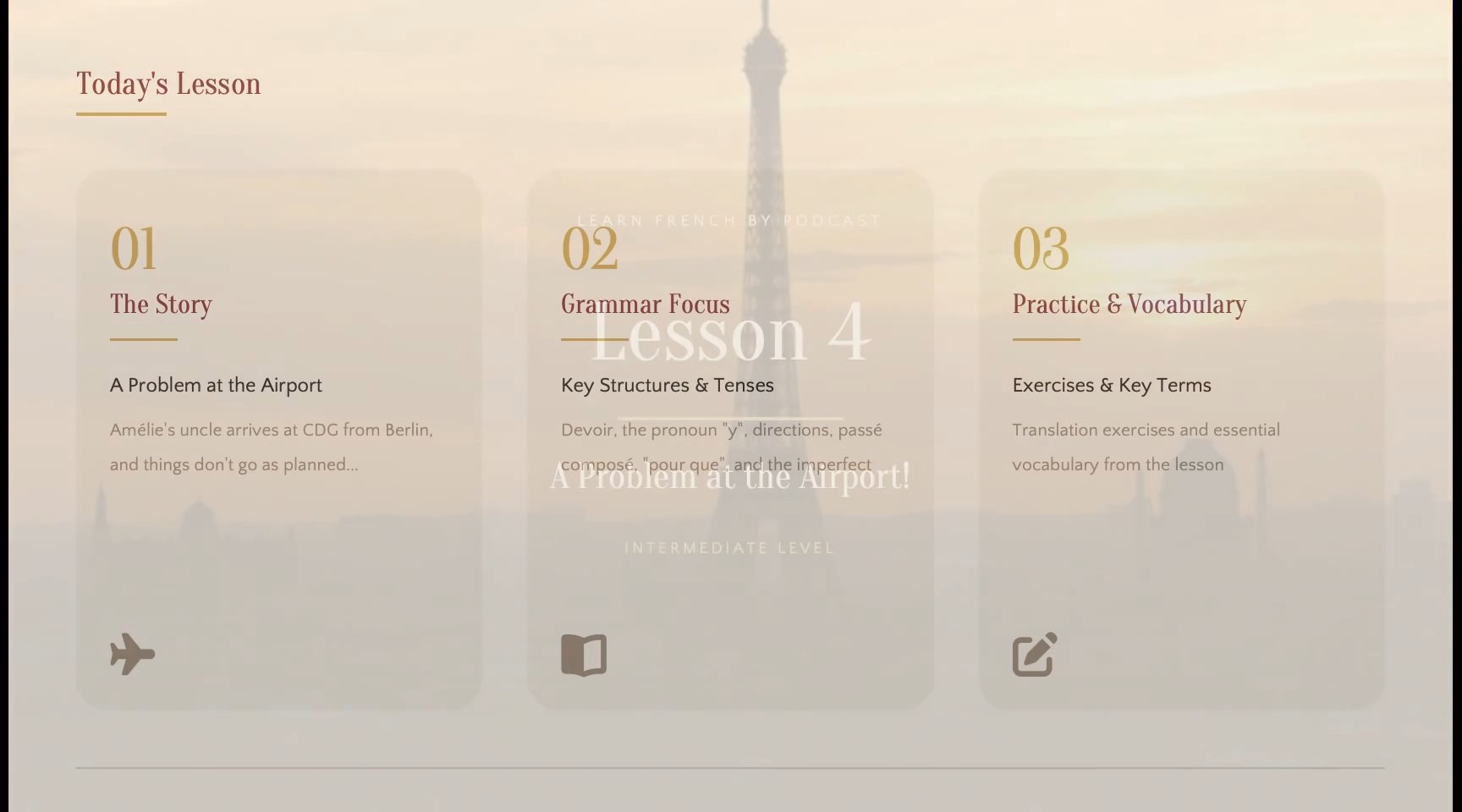
Find the presentation moments that matter
Analyze the visual timeline for meaningful content changes instead of filling your slide deck with repeated video frames.
- Identifies slides, charts, diagrams, screens, and other useful visuals
- Filters duplicate content and incomplete transition frames
- Keeps detected moments in their original video order
Choose a clean or editable PowerPoint
Export selected moments as clean visual slides, or use OCR to rebuild recognized text and visual elements for further editing.
- Offers an editable rebuild of recognized text and visual elements
- Preserves the source composition while rebuilding content
- Creates a PPTX for PowerPoint or Google Slides, with accuracy based on source quality

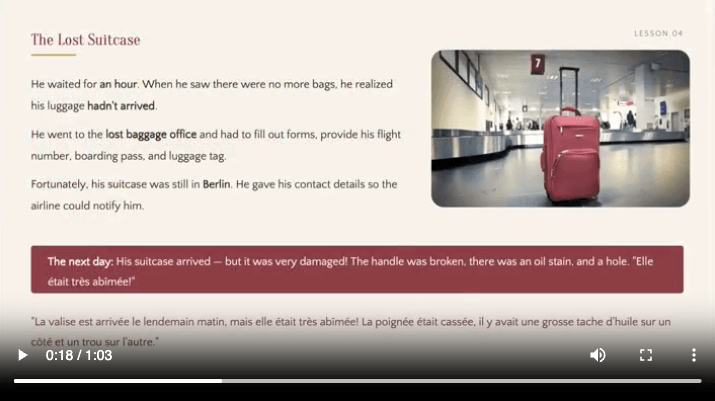
How to extract slides from YouTube
Go from an accessible presentation video to a reviewable PowerPoint deck in four straightforward steps.
Paste the YouTube URL
Add the link to an accessible lecture, webinar, tutorial, or presentation video.
Load and analyze the video
The converter checks the video and scans its visual timeline for presentation changes.
Clean and rebuild content
Repeated moments are removed while OCR prepares recognized content for editable slides.
Review and export PPTX
Check the selected content, remove anything unnecessary, and download the finished deck.
From YouTube link to slide deck
Extract visible presentation content rather than generating new slides from narration. Review the detected pages and control what appears in the final PPTX.
URL-only input
Paste a supported YouTube link directly into the converter. This page is dedicated to YouTube and does not require a local video upload.
Video availability checks
The source video must remain available and accessible for processing. Private, restricted, age-gated, or blocked videos may not work.
Reviewable PowerPoint output
Keep useful moments in video order, remove unwanted captures, and choose a visual or editable PowerPoint export. Editable accuracy depends on source quality and slide complexity. Working from a local file instead? Use Video to PPT.
Manual YouTube screenshots vs YouTube to Slides
Avoid repeatedly pausing the video, capturing the screen, and arranging every image in PowerPoint yourself.
| Workflow | Manual Capture | YouTube to Slides |
|---|---|---|
| Starting point | Play and pause | Paste URL |
| Presentation change detection | ||
| Duplicate removal | ||
| Transition cleanup | ||
| OCR recognition | ||
| PPTX creation | Build by hand | Included |
| Content order | Arrange by hand | Video order |
Turn useful YouTube content into slides
Make long presentation videos easier to review and reuse in learning, documentation, training, and team communication.
YouTube lectures
Turn recorded classes with visible presentation content into slide decks for review and note-taking.
Educational videos
Recover diagrams, examples, and lesson visuals from educational channels as an organized study reference.
Recorded webinars
Create a PPTX recap from a published webinar without manually capturing every presentation change.
Software tutorials
Save important interface states and workflow steps from YouTube tutorials in a deck you can revisit.
Conference talks
Collect the key slides and charts shown during online talks for personal review or internal discussion.
Team references
Turn useful public training and presentation videos into focused decks that are easier for colleagues to scan.
YouTube slide extraction guides
Learn how to choose a suitable video, select a detection method, review the result, and export a useful deck.
Turn a YouTube video into PowerPoint slides
Follow the complete URL-to-PPTX workflow, including detection, review, and export.
Fixed interval vs AI detection
Compare predictable timeline captures with presentation-aware slide detection.
Extract slides without screenshots
See how automatic extraction replaces repetitive pausing and manual screen capture.
A faster way to review YouTube presentations
Turn long online lectures, webinars, and tutorials into focused slide decks without manual screen capture.
I paste a lecture link and get the important presentation moments in order. It makes exam review much more manageable.

Emily Zhao
University student
Published lessons become a PowerPoint reference I can update when preparing a new version of the course.

Ryan Cooper
Online educator
Instead of asking the team to scrub through a long webinar, I can share a concise deck with the key visual material.

Lucia Moretti
Training specialist
Conference talks often contain charts I want to revisit. The resulting PPTX keeps those moments much easier to find.

Owen Harris
Research assistant
YouTube software tutorials become ordered visual steps that help me plan clearer internal documentation.

Meera Nair
Technical writer
A focused PowerPoint recap is far easier to discuss with the team than sending everyone the same hour-long video.

Thomas King
Team lead
YouTube to Slides frequently asked questions
Common questions about turning an accessible YouTube presentation video into a reusable slide deck.
- How do I extract slides from a YouTube video?
- Paste a supported YouTube URL. The converter loads the video, detects presentation changes, removes repeated moments, lets you review the slides, and exports a PPTX.
- Do I need to download the YouTube video first?
- No. This page starts directly from a supported YouTube URL, so you do not need to download and upload a separate video file.
- Can I use any YouTube video?
- The video must be accessible for playback and processing. Private, restricted, removed, region-blocked, age-gated, or embedding-disabled videos may not work.
- Does it turn the narration into a new presentation?
- No. The converter focuses on visible presentation content already shown in the video, such as slides, diagrams, charts, and shared screens.
- Will it capture every video frame?
- No. It looks for meaningful visual changes so the slide deck is not filled with thousands of nearly identical frames.
- Can I edit the exported PowerPoint?
- Choose editable export to rebuild recognized text and visual elements. You can revise the PPTX in PowerPoint or Google Slides, but accuracy and editability depend on the video quality and slide complexity.
- Can I remove unwanted captures?
- Yes. Review detected moments before export and remove speaker shots, advertisements, loading screens, duplicates, or anything else you do not need.
- Can I insert a missed slide or replace a detected YouTube slide?
- Direct YouTube tasks do not currently support inserting or replacing slides. If you need frame-level corrections, use a local copy you are permitted to download and process it with the Video to PPT converter.
- How long does YouTube processing take?
- Processing time depends on video duration, resolution, availability, and detection mode, but most supported videos finish within a few minutes.
- Can I use the result for any purpose?
- You are responsible for respecting the video owner's copyright, YouTube's terms, and any permissions required for how you use or share the resulting deck.
Turn a YouTube video into slides
Paste an accessible presentation video URL and create a focused, reusable slide deck.